

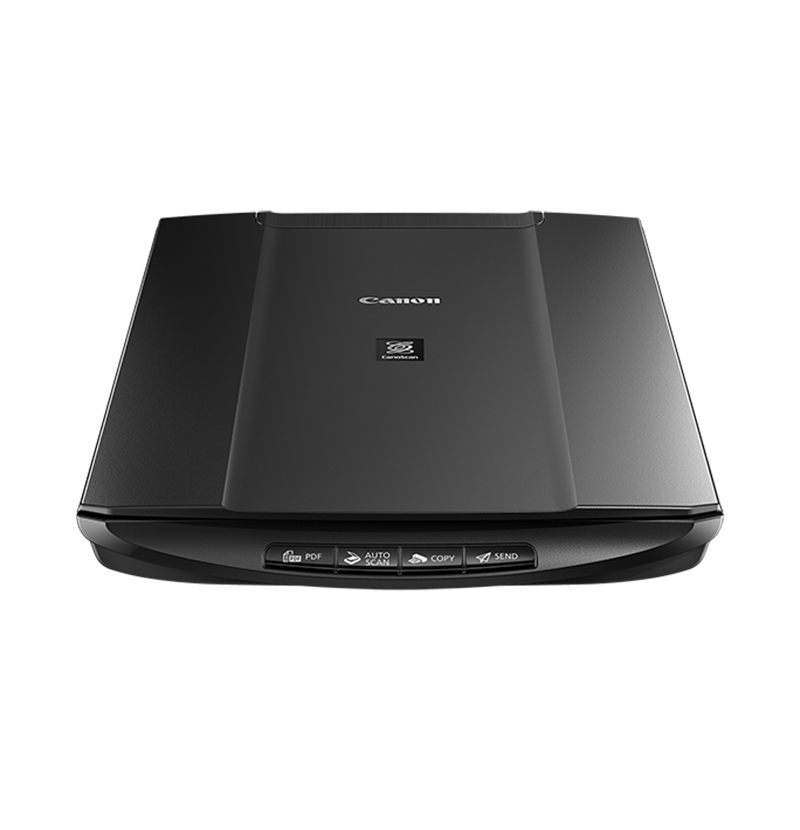
The Scanner Buttons do not work.
Issue
The scanner does not work when a scanner button on the main unit is pressed.
An error message appears when a scanner button is pressed.
Cause and Solution
Press the scanner button for a few seconds.
Disconnect the interface cable from the scanner and release the lock switch completely.
Then reconnect the scanner.
Unlocking the Scanner
1. Check if CanoScan Toolbox is installed on your computer.
2. If CanoScan Toolbox is not installed on your computer, install the software.
Checking if Toolbox is installed
If Toolbox is installed on your computer, you can start it by following the procedure below.
Installing the scanner driver from the CD-ROM (Windows)
Do NOT connect the scanner to a computer before installing the scanner driver.
Installing the scanner driver from the CD-ROM (Macintosh)
Do NOT connect the scanner to a computer before installing the scanner driver.
Specify the settings of the scanner buttons from your computer.
Setting up the Scanner Buttons to start Toolbox (Windows)
In the following example, CanoScan LiDE600F will be set to start Toolbox when a Scanner Button is pressed.