
Printing Does Not Start/Printing Is Blurred/Colors
Issue
Cause and Solution
See "An Error Message Is Displayed on the LCD" to identify the ink error, and then take the appropriate action depending on the error condition.
Make sure all of the orange tape is peeled off the ink tank and the air hole is exposed, as illustrated in (A). If any orange parts are left as in (B), remove all of the orange parts.
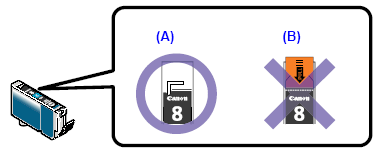
(A) Correct
L-shaped air hole is exposed.
(B) Incorrect
Part of the orange tape is remaining. Peel off the tape properly along the perforation.
See "When Printing Becomes Faint or Colors Are Incorrect" and perform any necessary maintenance operation.
Many types of paper are made to be printed on only a particular side of the paper.
Printing on the wrong side may cause unclear prints or prints with reduced quality.
Refer to the instruction manual supplied with the paper for detailed information on the printable side.
If you did not align the Print Head after installation, straight lines may be printed misaligned. Make sure to align the Print Head after you install it. See "Automatic Print Head Alignment" and perform Automatic Print Head Alignment. If this does not solve the problem, see "Manual Print Head Alignment" and perform Manual Print Head Alignment.