Check to see if the camera is horizontal (level) (PowerShot G12)
Solution
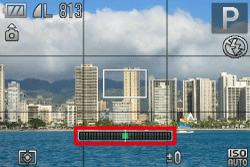
This camera can display an [Electronic Level] as a guide to determine whether the camera's LCD monitor is level.
Please use it as a guide for determining whether the camera is level when shooting.
REFERENCE
- The scale on the [Electronic Level] displays 15 units to the right and left of the center position. Each unit is approximately equal to 1 degree.
CAUTION
- The following explanations are provided based on the assumption that the [Shooting Mode] is set to [Program] (
 ).
). - If the [Shooting Mode] is set to [Quick Shot] (
 ), the [Electronic Level] cannot be displayed.
1. Press the <DISP.> button ( ) a few times to display the [Electronic Level].
) a few times to display the [Electronic Level].
2. Level the camera.
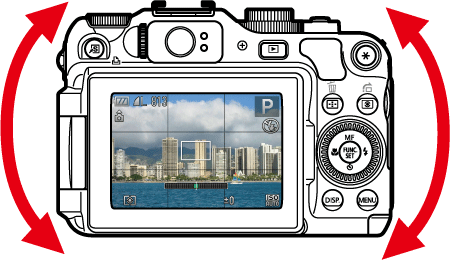
Adjust the camera's tilt on the left and right sides so that the center of the [Electronic Level] turns green.
NOTE
- If the [Electronic Level] does not appear in Step 1, press the <MENU> button (
 ) to display the [Shooting] tab (
 ). In the [Custom Display] options, add a check (
 ) to either (
 ) or (
 ).
). - If you tilt the camera too far forward or backward, the [Electronic Level] will turn gray, and you will not be able to use it to level the camera.
- The [Electronic Level] will not appear while shooting a movie.
- Holding the camera vertically will change the orientation of the [Electronic Level].
If the subject does not appear level even when the camera's tilt has been adjusted so that the center of the [Electronic Level] is green, calibrate the [Electronic Level].
If you use the [Grid Lines] to confirm that the camera is level beforehand, you can calibrate the electronic level more accurately.
NOTE
- To display the [Grid Lines], press the <DISP.> button () a few times, and the [Grid Lines] will appear.
- If the [Grid Lines] do not appear, press the <MENU> button () to display the [Shooting] tab (). In the [Custom Display] options, add a check () to either () or ().
3. Press the <MENU> () button.
) button.4. The following window appears.
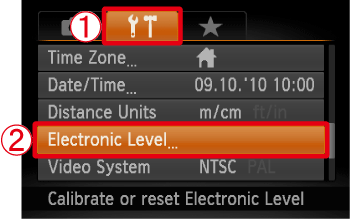
Operate the <directional buttons> left or right to select  the [Set up] (
 ) tab.
the [Set up] () tab.Operate the <directional buttons> up or down to select  [Electronic Level].
[Electronic Level].After making a selection, press the <FUNC./SET> ( ) button.
) button.5. The following window appears.
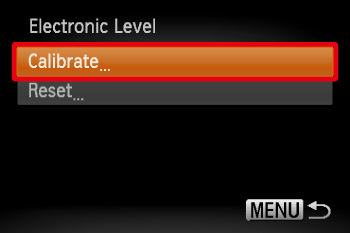
Check that [Calibrate] is selected, and then press the <FUNC./SET> button ().
).NOTE
If you want to restore the default settings for the [Electronic Level], select [Reset].
If the [Electronic Level] has not been calibrated, it cannot be reset.
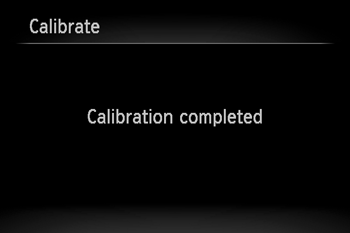
6. The following window appears.
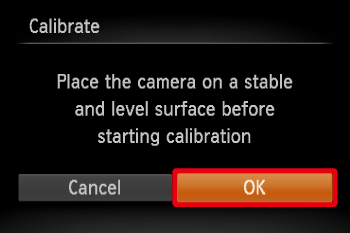
Operate the <directional buttons> left or right to select [OK].
After making a selection, press the <FUNC./SET> () button.
) button.7. The following window appears.