Basic Methods for Scanning Documents to a File Server (SMB)
Solution
This section describes the basic procedure for sending scanned documents to a computer that acts as a file server on a network. For information on the required settings to be made beforehand, refer to the related information.
NOTE
If you select a file format for color from the <Color/File Format Settings>, you will not be able to consecutively scan multiple-page originals from the platen glass. If you want to consecutively scan multiple-page originals using a file format for color, use the feeder instead.
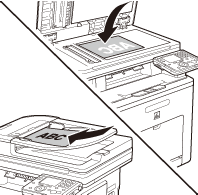
1. Place your originals.
2. Press  (Main Menu).
(Main Menu).3. Use [  ] , [
] , [  ] or
] or  (Scroll Wheel) to select <Send/Fax> or <Scan to Store>, then press [OK].
] , [ ] or (Scroll Wheel) to select <Send/Fax> or <Scan to Store>, then press [OK].If you select <Scan to Store>, use [ ] , [ ] or (Scroll Wheel) to select <Store on File Server>, then press [OK].
] , [ ] or (Scroll Wheel) to select <Store on File Server>, then press [OK].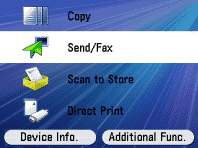
4. Use [ ] , [ ] or (Scroll Wheel) to select <Enter File Server (New)>, then press [OK].
] , [ ] or (Scroll Wheel) to select <Enter File Server (New)>, then press [OK].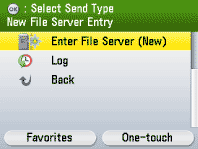
NOTE
You can specify the address using the Address Book or One-touch registered beforehand. For instructions on how to register the Address Book and One-touch, refer to the related information.
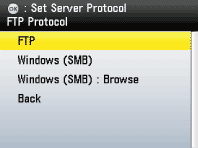
5. Use [ ] , [ ] or (Scroll Wheel) to select <Windows (SMB)> or <Windows (SMB) : Browse>, then specify the file server's address.
] , [ ] or (Scroll Wheel) to select <Windows (SMB)> or <Windows (SMB) : Browse>, then specify the file server's address.- Select <Windows (SMB)> if you want to enter the file server address directly.
- Select <Windows (SMB) : Browse> if you want to browse and specify the file server on a network.
6. Make the scan settings you require.
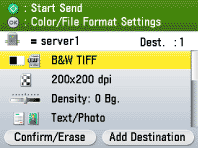
7. Press  (Start).
(Start).- Scanning starts if the original is placed in the feeder, and the scanned data is sent to the specified destination when scanning is complete.
- To cancel scanning, press the left Any key to select <Cancel> or press
 (Stop).
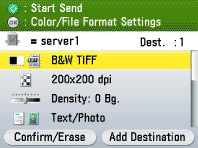
8. Use [ ] , [ ] or (Scroll Wheel) to select the original size, then press [OK].
] , [ ] or (Scroll Wheel) to select the original size, then press [OK].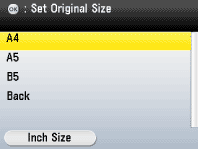
9. Press (Start).
(Start).- Scanning starts.
- To cancel scanning, press the left Any key to select <Cancel> or press (Stop).
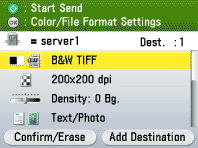
10. Follow the instructions on the display, then press (Start) once for each original.
(Start) once for each original.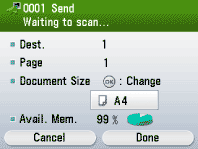
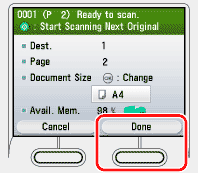
11. When scanning is complete, press the right Any key to select <Done>.
The scanned data is sent to the specified destination.