How to Clear the [Automatically Quit ScanGear after Scanning] check box (MF6550)
Solution
Click a button on the MF Toolbox and, in the settings dialog box, select [Display the Scanner Driver] to open the ScanGear MF.
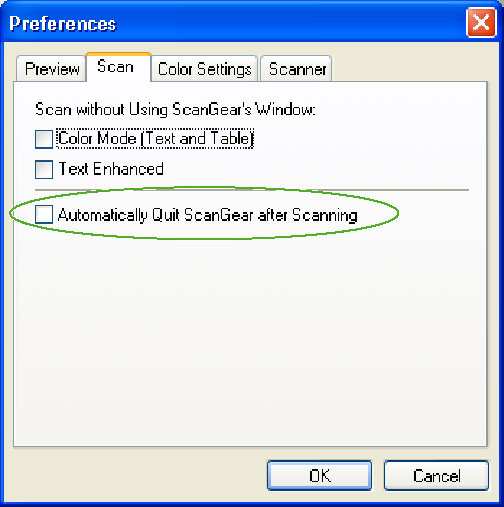
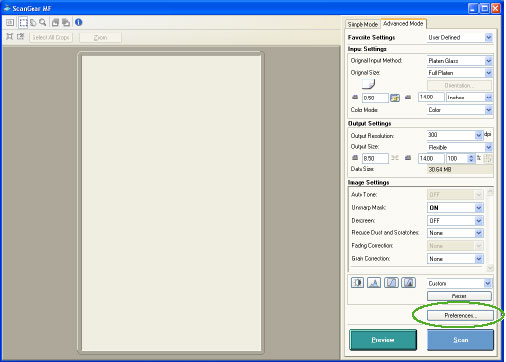
In the [Scan] Tab in the [Preferences] dialog box of Advanced Mode, clear the [Automatically Quit ScanGear after Scanning] check box before scanning.
NOTE
To use the ScanGear MF, select [Display the Scanner Driver] in the MF Toolbox or scan from an application.
1. Click the [Preferences] in [Advanced Mode] tab.
2. Click [Scan] tab and clear the [Automatically Quit ScanGear after Scanning] check box before scanning.