

Viewing the Camera’s Instruction Manual (PDF) and Saving it to a Computer.
Solution
The viewing method and instructions for saving the software's Instruction Manuals (PDF files) to a computer are explained below.
NOTE
- In this section, the example procedure is shown in Windows 7. Menu items, screens displayed, and procedures may differ depending on the operating system installed on the computer.
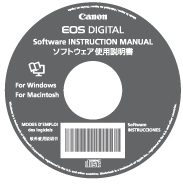
- The design appearing on the CD-ROM may differ depending on the camera model you use.
- Software and file names also may differ depending on the model you use.
To view the software Instruction Manuals, copy them to your computer from the [Software INSTRUCTION MANUAL] disk included with the camera.
1. Insert the [Software INSTRUCTION MANUAL] disk into the computer.
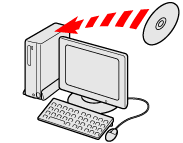
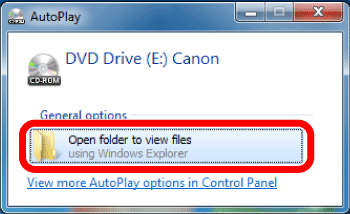
2. Double-click the CD-ROM icon.
- Click the [Open folder to view files] option in the [AutoPlay] menu, or double click the icon displayed in [(My) Computer].
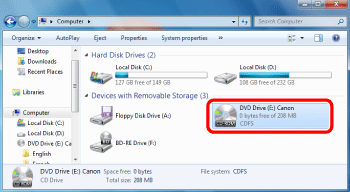
3. Right click the preferred language and select [Copy].
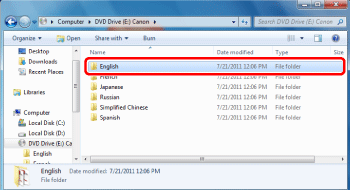
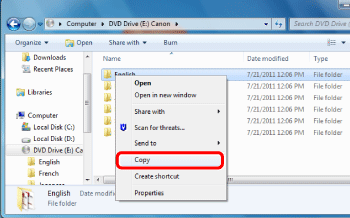
The following PDF Instruction manual files will be copied to the computer.
| Windows | Macintosh | |
|---|---|---|
| EOS Utility | EUx.xW_E_xx | EUx.xM_E_xx |
| Digital Photo Professional | DPPx.xW_E_xx | DPPx.xM_E_xx |
| ImageBrowser EX | IBXx.x_E_xx | |
| Picture Style Editor | PSEx.xW_E_xx | PSEx.xM_E_xx |
| Map Utility | MUx.x_E_xx | |
*Depending on the software included with your camera, the files may differ.
4. Right click the desktop or a folder of your choice, and select [Paste].
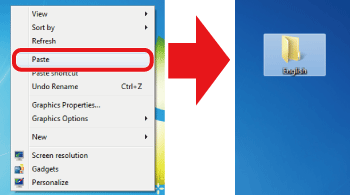
5. Double–click the files inside the folder you copied to open them.
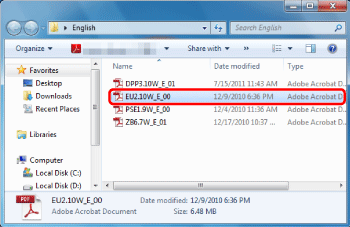
REFERENCE
- Viewing the files requires Adobe Reader (newest version recommended).
- Adobe Reader is available for free download from the Internet.
- Software instruction manuals are also available for download from the Canon Website. For more information on how to download, refer to the page containing the download links for the files.
- The Image Browser EX User Guide is included on the CD-ROM. For a more detailed Image Browser EX instruction manual, check the [Image Browser EX Guide] located inside the application after performing an auto-update of the software.