
I Want to Save Images to My Computer (PowerShot SX740 HS)
Solution
Follow the steps below to save images and movies on your compact digital camera to a computer.
NOTE
With EOS single-lens reflex cameras and mirrorless cameras, you may not be able to save images with the following method due to reasons, such as different software.
Use a card reader to save images or movies on a memory card to a computer without using Canon software or a USB cable.
- For details, use the [Reference content/Instructions] link in the table.
| Necessary items | Reference content/Instructions | Caution |
 •Card slot/card reader | •Using a Card Reader or a Card Slot on a Computer to Download Images Use a card reader and the OS standard settings for saving images without using Canon software or a USB cable. | Some cards (types or capacities) may not be compatible with the card slot or the card reader. |
Connect the DIGITAL terminal on the camera and the USB terminal on the computer with a USB cable to save images and movies.
- For more information, use the [Reference content/Instructions] link in the table for your version of the computer OS environment.
IMPORTANT
If you do not have a USB cable, please buy one separately.
- USB cable for the [Micro-B] camera terminal*
*A genuine Canon accessory is also available (Interface Cable IFC-600PCU).
| Necessary items | Reference content/Instructions | Caution |
 •USB cable for the [micro-B] camera terminal | •Saving Images to a Computer using Windows (Windows 7) •Saving Images to a Computer using Windows (Windows 8 / Windows 8.1) •Saving Images to a Computer using Windows (Windows 10) Use a cable and the OS standard settings for saving images without using Canon software. | Some camera models may not have performance guaranteed for the OS (for Windows XP/Vista/Mac OS 10.6/10.7 and other operating systems). |
This method enables you to send images from the camera to a computer using the Wi-Fi function.
| Necessary items | Reference content/Instructions | Caution |
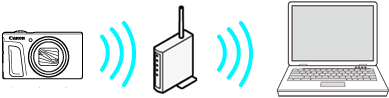 •Wireless LAN router/a computer with wireless LAN connection support/software (Image Transfer Utility 2) | •How to Transfer Images to the Computer Using Image Transfer Utility 2 (Wi-Fi) (Windows 7) •How to Transfer Images to the Computer Using Image Transfer Utility 2 (Wi-Fi) (Windows 8.1) •How to Transfer Images to the Computer Using Image Transfer Utility 2 (Wi-Fi) (Windows 10) •How to Transfer Images to the Computer Using Image Transfer Utility 2 (Wi-Fi) (Mac OS X) Connect the camera and the computer to the same wireless LAN router and establish a connection. | You may not be able to establish the connection due to your security settings or other characteristics of your environment. |