
How do I finalize the DVD disc?
Solution
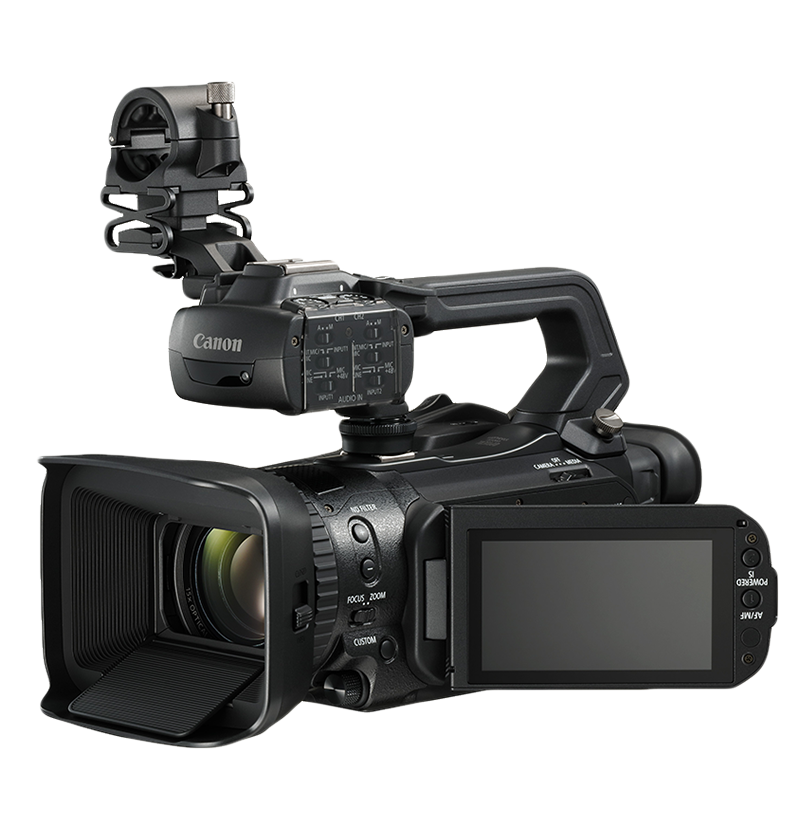
To play the disc you recorded on a DVD player, a computer's DVD drive or other digital device, you need to finalize it first.
CAUTION
- Be sure to finalize the disc in normal room temperatures. If the procedure was not completed correctly due to high temperature, let the camcorder cool off before resuming operation.
- Place the camcorder on a table or other stable surface before starting the procedure. Subjecting the camcorder even to slight impacts (for example to place it on a table or to disconnect a cable) after the finalization process started may result in permanent data loss.
- Do not disconnect the power source while the operation is in progress. Doing so can interrupt the process and result in permanent data loss.
- Do not use this camcorder to finalize discs that were not recorded with it.
- The time required to finalize the disc depends on the scenes recorded and the remaining free space on the disc.
| Additional recordings | Editing recordings | Initializing the disc | Unfinalizing the disc | |
| DVD-R/DVD-R DL in VIDEO mode | - | - | - | - |
| DVD-RW in VIDEO mode |  (*1) (*1) | - | | |
| DVD-RW in VR mode | | ( *2) | | - |
| : Available - : Unavailable *1: You will need to unfinalize the disc first. *2: Only scenes in the playlist can be divided. | ||||
1. Power the camcorder using the compact power adapter or a fully charged battery pack.

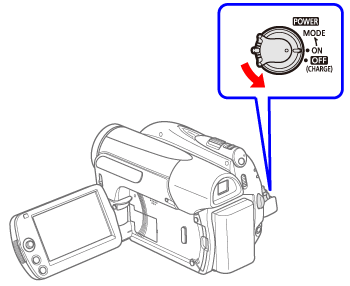
2. Set the camcorder to  mode.
mode.
mode.- The green PLAY indicator will turn on.
3. Press the <FUNC.> button.
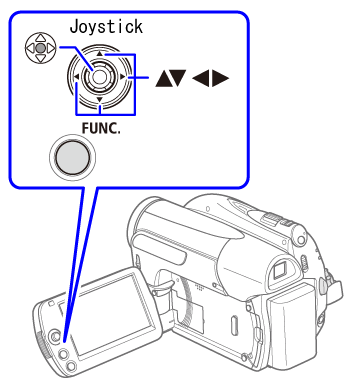
4. Using the joystick <  > to select [
  MENU ] and press <
  >.
>.
> to select [ MENU ] and press < >.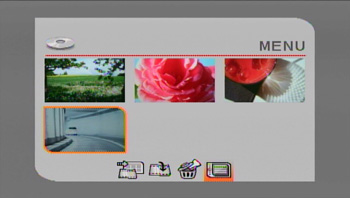
5. Using the joystick <  > to select [
  DISC OPERATIONS ] and press < >.
> to select [ DISC OPERATIONS ] and press < >.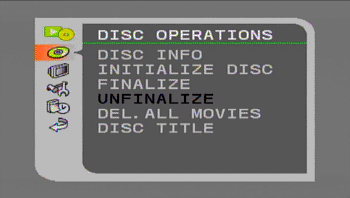
6. Using the joystick <  > to select [FINALIZE] and press < >.
> to select [FINALIZE] and press < >.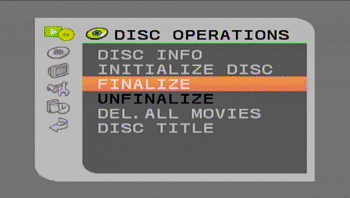
7. Using the joystick < > to select [YES] and press < >.
> to select [YES] and press < >.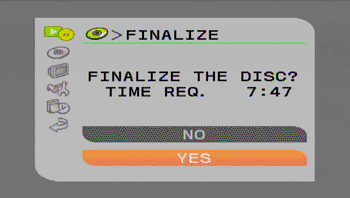
- A progress bar and the time remaining will be displayed on the screen.
- Selecting [ MENU ] is only necessary when using a DVD-RW recorded in VR mode. Otherwise, pressing <FUNC.> will open the menu directly on the setup menus screen.
8. When the process is completed ([OK] appears), press < > and wait until the [ DISC OPERATIONS] menu is displayed again.
> and wait until the [ DISC OPERATIONS] menu is displayed again.- Depending on the number of scenes, this may take a moment.
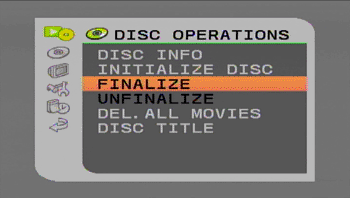
9. Press <FUNC.> to close the menu.
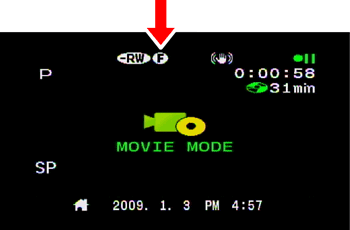
- During playback and in  mode, the
  icon will indicate that the disc is finalized.
mode, the icon will indicate that the disc is finalized.