


Setting Paper Size and Type
Solution
You can register a frequently used paper size and type for the stack bypass tray.
The default setting is <Off>.
1. Press  (Main Menu).
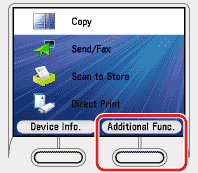
(Main Menu).2. Press the right Any key to select <Additional Func.>.
3. Use [  ] , [
] , [  ] or
] or  (Scroll Wheel) to select <Paper Settings>, then press [OK].
] , [ ] or (Scroll Wheel) to select <Paper Settings>, then press [OK].
4. Use [ ] , [ ] or (Scroll Wheel) to select <Stack Bypass Paper (Std.)>, then press [OK].
] , [ ] or (Scroll Wheel) to select <Stack Bypass Paper (Std.)>, then press [OK].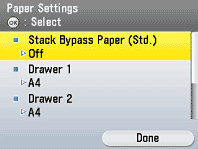
5. Use [ ] , [ ] or (Scroll Wheel) to select <On>, then press the right Any key to select <Option>.
] , [ ] or (Scroll Wheel) to select <On>, then press the right Any key to select <Option>.If you do not want to set the stack bypass standard settings, select <Off>, then press [OK], and press (Main Menu) to return to the Main Menu screen.
(Main Menu) to return to the Main Menu screen.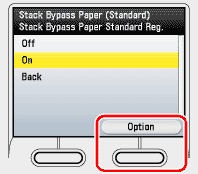
 If you register a standard paper size:
 1 Use [ ] , [ ] or (Scroll Wheel) to select paper size, then press [OK].
- You can select from the following paper sizes:
<A4>, <A5>, <B5>, <Custom Size>, <COM10>, <Monarch>, <DL>, <ISO-C5>, <ISO-B5>
- If you use inch size paper, press the left Any key to select <Inch Size> and select the paper size you want to use.
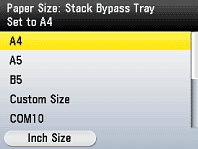 If you register an irregular paper size: 1. Use [ ] , [ ] or (Scroll Wheel) to select <Custom Size>, then press [OK].
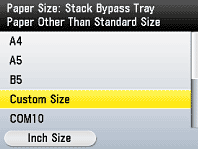 2. Use [ ] , [ ] or (Scroll Wheel) to select <X:> (length for the short edge), then press [OK].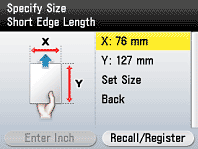
NOTE
If the irregular paper sizes have previously been set, you can recall the size setting.
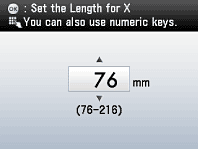
3. Use [ ] , [ ], (Scroll Wheel) or  -
-  (numeric keys) to enter the length for X (short edge), then press [OK].
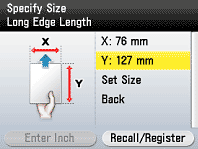
 4. Use [ ] , [ ] or (Scroll Wheel) to select <Y:> (length for the long edge), then press <OK>.
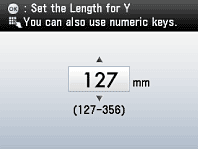
 5. Use [ ] , [ ], (Scroll Wheel) or - (numeric keys) to enter the length for Y (long edge), then press [OK].
 6. Use [ ] , [ ] or (Scroll Wheel) to select <Set Size>, then press [OK].
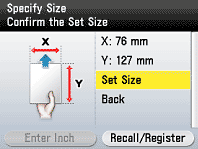 If you register an irregular paper size by recalling the previously set size:
You can recall the previously set paper size.
1. Use [ ] , [ ] or (Scroll Wheel) to select <Custom Size>, then press [OK].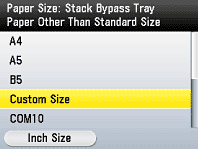 2. Press the right Any key to select <Recall/Register>.
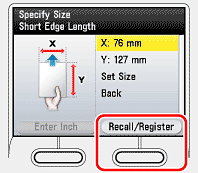 3. Use [ ] , [ ] or (Scroll Wheel) to select <Size 1> or <Size 2>, then press [OK].
The recalled paper size is displayed.
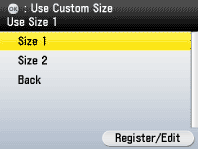
NOTE
You can also edit the previously set size or register a new irregular size from this display. Press the right Any key to select <Register/Edit> → select <Size 1> or <Size 2> → press [OK] → specify the lengths for <X:> and <Y:> → select <Set Size> → press the right Any key to select <Done> → select <Back> → press [OK].
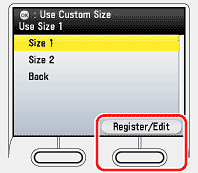 4. Use [ ] , [ ] or (Scroll Wheel) to select <Set Size>, then press [OK].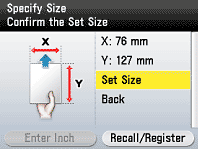
6. Use [ ] , [ ] or (Scroll Wheel) to select paper type, then press [OK].
] , [ ] or (Scroll Wheel) to select paper type, then press [OK].The selectable paper types vary depending on the paper size you have specified. The unavailable paper types are grayed out on the display.
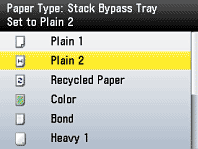
7. Use [ ] , [ ] or (Scroll Wheel) to select [On], then press [OK].
] , [ ] or (Scroll Wheel) to select [On], then press [OK].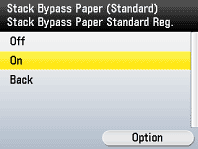
8. Press right Any key to select [Done].
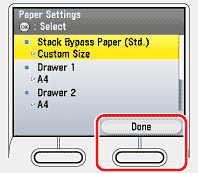
9. Press (Main Menu) to return to the Main Menu screen.
(Main Menu) to return to the Main Menu screen.When you place other sizes and/or types of paper, follow this procedure to change the settings.
The default settings are <A4> and <Plain 2>.
1. Press (Main Menu).
(Main Menu).2. Press the right Any key to select <Additional Func.>.
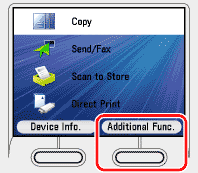
3. Use [ ] , [ ] or (Scroll Wheel) to select <Paper Settings>, then press [OK].
] , [ ] or (Scroll Wheel) to select <Paper Settings>, then press [OK].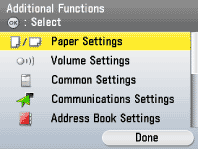
4. Use [ ] , [ ] or (Scroll Wheel) to select <Drawer 1> or <Drawer 2>*, then press [OK].
] , [ ] or (Scroll Wheel) to select <Drawer 1> or <Drawer 2>*, then press [OK].*Only when the optional Paper Drawer (Paper Drawer 2) is attached.
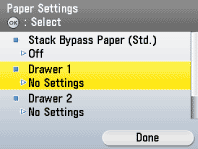
5. Use [ ] , [ ] or (Scroll Wheel) to select paper size, then press [OK].
] , [ ] or (Scroll Wheel) to select paper size, then press [OK].- You can select from the following paper sizes:
<A4>, <A5>, <B5>
- If you use inch size paper, press the right Any key to select <Inch Size> and perform the step above.
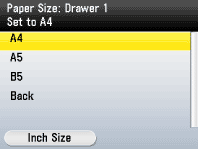
6. Use [ ] , [ ] or (Scroll Wheel) to select paper type, then press [OK].
] , [ ] or (Scroll Wheel) to select paper type, then press [OK].- You can select from the following paper types:
<Plain 1>, <Plain 2>, <Recycled Paper>, <Color>, <Bond>, <Heavy 1>
- If you use the paper drawer 2*, repeat the steps 4 to 6 for the paper drawer 2*.
*Only when the optional Paper Drawer (Paper Drawer 2) is attached.
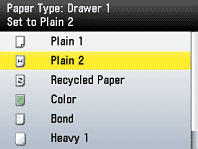
7. Press (Main Menu) to return to the Main Menu screen.
(Main Menu) to return to the Main Menu screen.