
Checking how much space on the built-in memory or memory card is available/used
Solution
You can check how much total space is available on the internal memory and memory card (and how much is used), how much time is available for recording videos (and how much is used for video recordings), and how many still images have been taken (and how many more can be taken). For memory cards, you can also check the SD Speed Class.
You can check the amount of space available or space used from the setup menu in the following modes:
- [Available Space in Memory]: Recording mode
- [Used Space in Memory]: Playback mode
IMPORTANT
The screens and settings that appear may differ depending on the model you are using.
This section explains how to check the [Available Space in Memory].
1. Press <HOME>.
2. Touch [Other Settings].
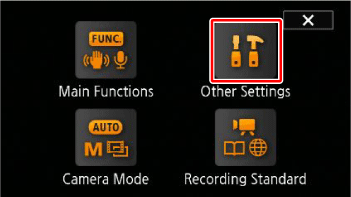
3. Touch [  ] tab.
] tab.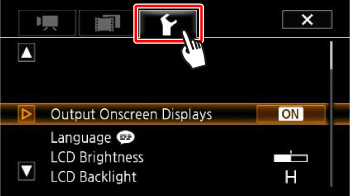
4.  Drag your finger up and down bring [Available Space in Memory] into the orange selection bar, and then
  touch the button.
Drag your finger up and down bring [Available Space in Memory] into the orange selection bar, and then touch the button.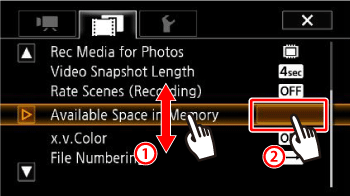
5. Touch [  ] (built-in memory), or [
  ] (memory card).
] (built-in memory), or [ ] (memory card).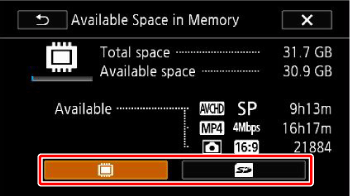
6. Check the space available.
The following screen appears when you select [ ] (memory card).
] (memory card).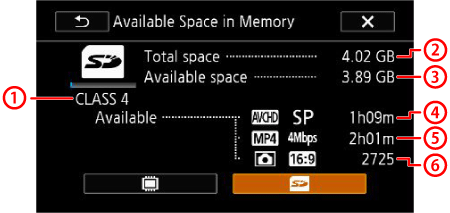
 SD Speed Class
 Total space
 Available Space
 AVCHD movies: Shooting time available
  MP4 movies: Shooting time available
 Still images: Number of shots possible
 * The recording time available and number of shots possible are calculated using the currently set recording mode or still image size (1920×1080).
REFERENCE
You can check the [Used Space in Memory] as follows.
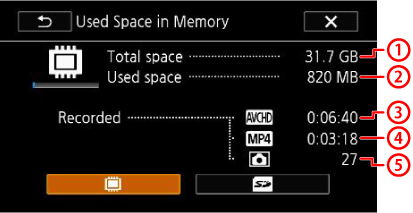 Total space Used Space AVCHD movies: Shooting time used MP4 movies: Shooting time used Still images: Number of shots taken