
How to set Continuous Shooting (PowerShot A2500)
Solution
Hold the shutter button all the way down to shoot continuously.
IMPORTANT
- The following explanations are provided based on the assumption that the [Shooting Mode] is set to [Program AE] (
 ).
). - Cannot be used with the self-timer or [Blink Detection].
- During continuous shooting, focus and exposure are locked at the position/level determined when you pressed the shutter button halfway.
- Shooting may stop momentarily or continuous shooting may slow down depending on shooting conditions, camera settings, and the zoom position.
- As more shots are taken, shooting may slow down.
- Shooting may slow down if the flash fires.
1. Press the power button to turn the camera on.
2. Press the <FUNC./SET> ( ) button, choose [Drive Mode] in the menu, and then choose [Continuous] (
 ).
).
) button, choose [Drive Mode] in the menu, and then choose [Continuous] ().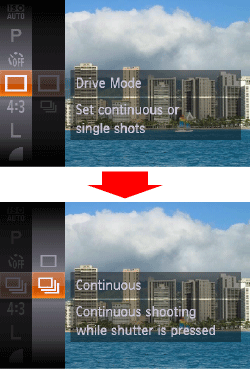
3. The following screen appears.
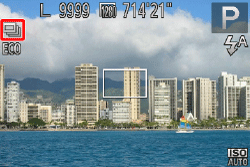
If the [Continuous] () icon is displayed on the upper-left part of the screen, the setting is completed.
) icon is displayed on the upper-left part of the screen, the setting is completed.As long as you hold the <shutter button> down, the camera will shoot successive images.
Please see the table below for information on continuous shooting speed.
| Model | Shooting Modes | Maximum Speed (Approx. Images/sec.) |
|---|---|---|
| PowerShot A2500 | [P] mode | 0.8 |
[Low light] ( ) mode ) mode | 2.9 |