






Connecting to a printer and printing via Wi-Fi (PowerShot SX740 HS)
Solution
Print images over a Wi-Fi connection from printers compatible with PictBridge (wireless LAN) technology.
This section describes how to connect the camera directly to a printer via Wi-Fi and to print images.
1. Press the  button.
button. 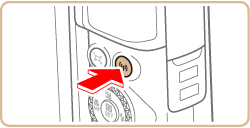
NOTE
- When the following screen appears, press the
 button.
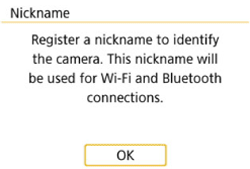

- To use the nickname displayed, press the
 button.
 - Nicknames are 1 - 8 characters and can be changed later. For more information on using the keyboard, please refer to "On-Screen Keyboard".
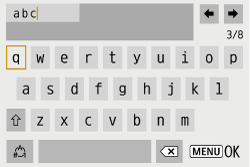
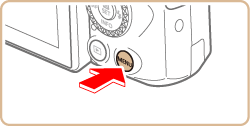
- Press the
 /
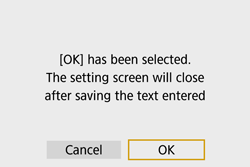
/  buttons to choose [OK] and press the
  button.

1. Press the / buttons to choose [  ], and then press the button.
/ buttons to choose [ ], and then press the button.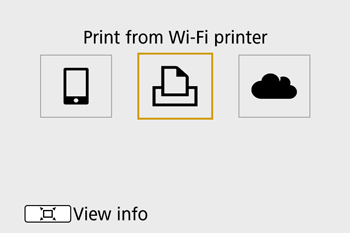
2. Choose [Register a device for connection], and then press the button.
button.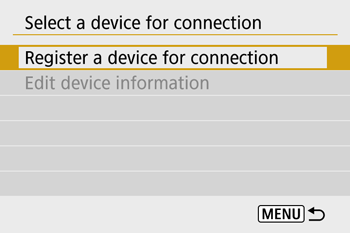
3. Check the SSID ( ) and password (
 ).
).
) and password ().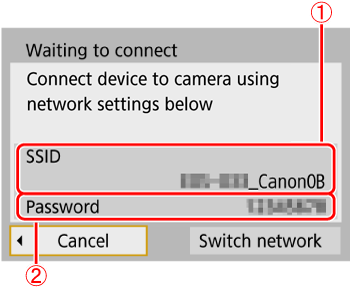
- The SSID ends with _Canon0B.
4. Use the printer to connect to the camera via Wi-Fi.
- In the printer’s Wi-Fi setting menu, choose the SSID (network name) displayed on the camera to establish a connection.
- In the password field on the printer, enter the password displayed on the camera.
5. Press the  /
/  buttons to choose the printer to use and press the button.
/ buttons to choose the printer to use and press the button.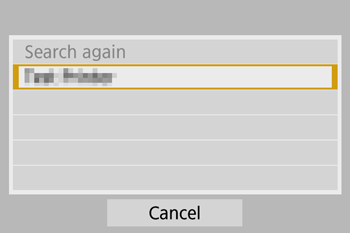

- Images on the memory card are displayed after the devices are connected via Wi-Fi.
6. Press the / buttons to choose an image and press the button.
/ buttons to choose an image and press the button.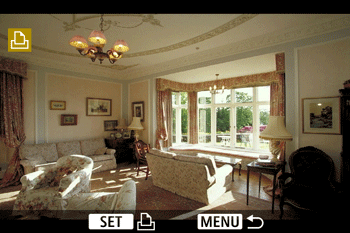
7. Press the / buttons to choose [Print image], and press the button.
/ buttons to choose [Print image], and press the button.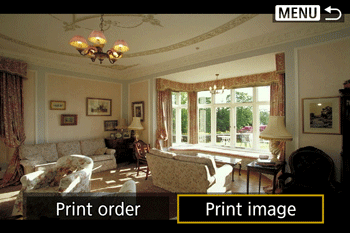
8. Press the / buttons to choose [Print], and press the button.
/ buttons to choose [Print], and press the button.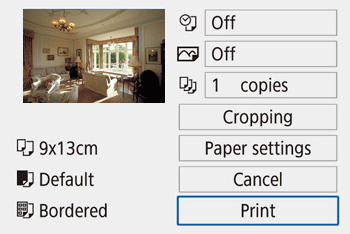
9. [ Start printing ] will be displayed, press the / buttons to choose [ OK ], press the button.
/ buttons to choose [ OK ], press the button.- Printing now begins.
- To print other images, after printing is finished, repeat this procedure from step 6.
NOTE
Wi-Fi signal transmission can be turned off as follows.
Choose [  1 ] menu > [Wireless communication settings] > [Wi-Fi settings], and in [Wi-Fi], choose [Disable].
1 ] menu > [Wireless communication settings] > [Wi-Fi settings], and in [Wi-Fi], choose [Disable].Use the on-screen keyboard to enter information. Note that the length and type of information you can enter varies depending on the function you are using.
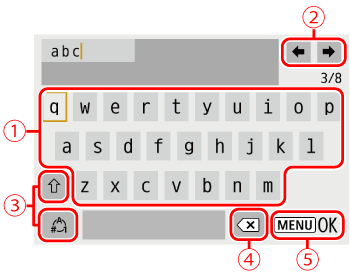
| •Entering characters Press the / / / buttons or turn the  dial to choose the key of your desired character, and then press the button. dial to choose the key of your desired character, and then press the button. |
| •Moving the cursor Choose [  ] or [ ] or [  ] and press the button. ] and press the button. |
 | •Switching input modes Choose [  ] , press the button to switch to capital letters. ] , press the button to switch to capital letters.Choose [  ] , press the button to switch to numbers and characters. ] , press the button to switch to numbers and characters. |
 | •Deleting characters Choose [  ] and press the button. ] and press the button.The previous character will be deleted. |
 | •Confirming input After pressing the  button, press the / buttons to choose [OK] , press the button. button, press the / buttons to choose [OK] , press the button. |
NOTE
- To return to the previous screen, press the button.